Table of Contents
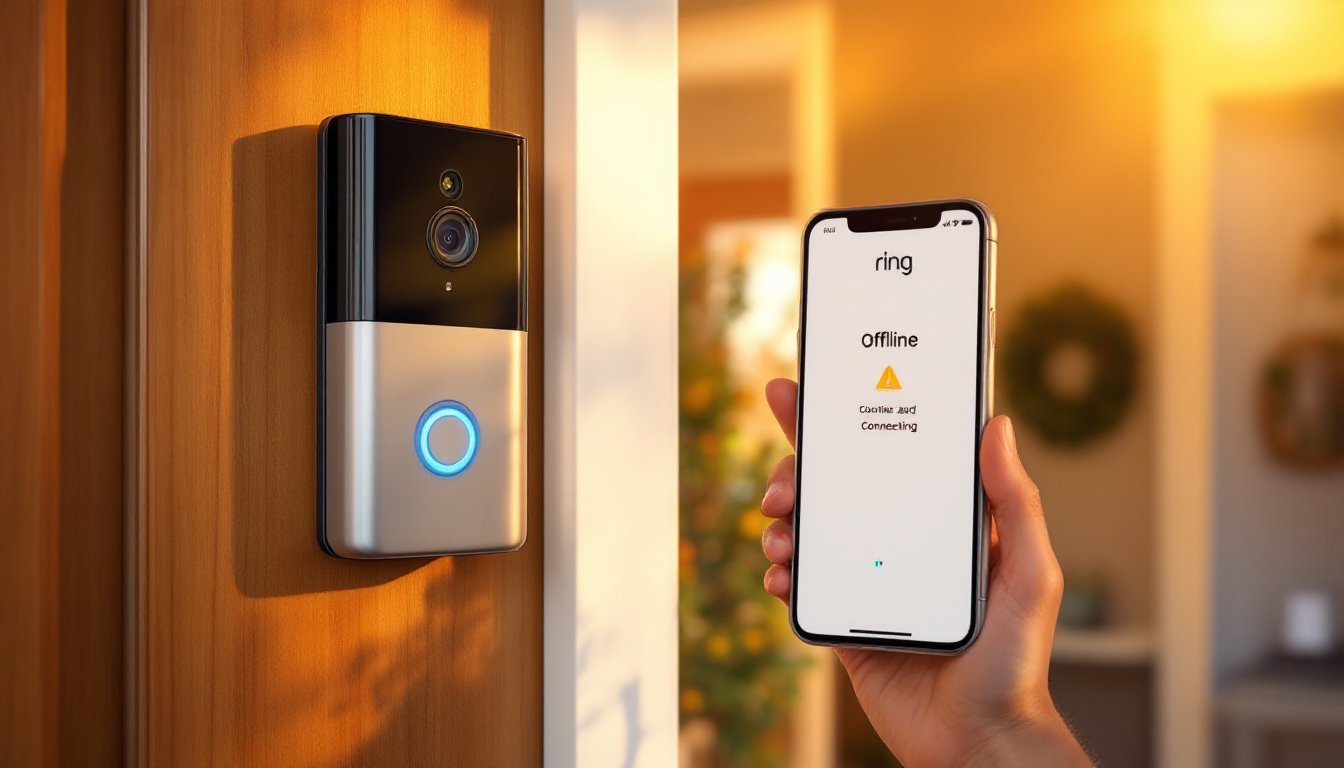
ToggleA Ring doorbell is supposed to give you peace of mind, letting you monitor who’s at your door from anywhere. So when your Ring doorbell stopped working, it’s frustrating. The good news? Most issues have straightforward fixes you can handle yourself without calling a tech support line or replacing hardware. Whether it’s a connectivity hiccup, a power issue, or something stuck in the app settings, this guide walks you through the most common causes and how to get your doorbell working again.
Key Takeaways
- Why is my Ring doorbell not working often comes down to two common issues: weak WiFi connectivity or inadequate power supply—verify at least three to four bars of signal strength and confirm your transformer outputs 16–24 VAC.
- A hard restart by flipping your doorbell’s breaker for 30 seconds (wired models) or removing and reinserting the battery pack (battery-powered models) resolves temporary firmware glitches without erasing your settings.
- Check Ring app permissions for camera, microphone, and location access, and force-close the app to resolve display issues that make your doorbell appear offline even when it’s functioning normally.
- Install pending Ring app updates and check your doorbell’s firmware version in Device Health settings, as outdated software frequently causes connectivity problems and incompatibility with recent OS updates.
- If earlier steps fail, perform a factory reset using the recessed reset button, then reconnect the doorbell as a new device—or contact Ring support if hardware failure is suspected.
- If your Ring doorbell recently went offline after a WiFi password change, reconnect the device with your new network credentials in the Ring app instead of assuming hardware failure.
Check Your WiFi Connection and Power Source
Before diving into app settings or factory resets, rule out the two most common culprits: WiFi connectivity and power supply. A Ring doorbell needs both to function, and a weak signal or inadequate power will kill its performance every time.
Verify WiFi Signal Strength
Your doorbell’s WiFi signal strength matters just as much as your phone’s does. If it’s sitting at the edge of your router’s range or blocked by exterior walls, it’ll struggle to stay connected. Stand near your doorbell with your phone and check your WiFi network’s signal bars, aim for at least three bars, ideally four or five.
If your signal is weak, reposition your router or add a WiFi extender closer to the doorbell’s location. Many homeowners don’t realize that metal door frames, stucco, or thick masonry can severely attenuate WiFi signals. If repositioning isn’t practical, a WiFi 6 mesh system or a dedicated WiFi extender positioned halfway between your router and doorbell usually solves the problem. Test the connection again after making changes: your phone should show strong signal strength at the doorbell’s location.
Confirm Adequate Power Supply
Ring doorbells draw consistent power, either from an existing wired doorbell circuit (typically 16–24 VAC from a transformer) or from batteries if you’re using a battery-powered model. If your doorbell uses the wired connection, check that your home’s transformer is still functioning. Many older homes have transformers tucked in attics, basements, or crawlspaces: look for a small box near your electrical panel labeled “doorbell” or “low voltage.”
Test the transformer with a voltmeter, set it to AC voltage and touch the leads to the two terminal screws. You should see 16–24 VAC. If you read zero or very low voltage, the transformer may have failed and needs replacement. This is a job for a licensed electrician unless you’re comfortable working with low-voltage circuits.
If you’re using a battery-powered Ring doorbell, open the Ring app and check the battery percentage. Many users forget that batteries drain over months, especially in cold weather or if the doorbell is processing video frequently. Swap in fresh batteries and retest, this alone solves roughly 30% of “not working” complaints.
Restart Your Ring Doorbell Device
Sometimes the doorbell firmware simply gets stuck, and a hard restart clears it out. This is the second-easiest troubleshooting step and requires no technical knowledge.
For wired doorbells, flip the breaker controlling the doorbell circuit at your electrical panel (it’s usually labeled “doorbell” or “chime”) and leave it off for 30 seconds. Then flip it back on. The doorbell will power down and restart, which often resolves temporary glitches.
For battery-powered models, physically remove the battery pack, wait 30 seconds, and reinstall it. The doorbell will reboot and reconnect to WiFi, this process usually takes 2–3 minutes, and you’ll see the status light cycle through colors as it initializes.
After the restart, open your Ring app and check whether the doorbell now shows as “online.” If it does, you’ve likely solved the issue. If it still shows offline, move to the next step. Keep in mind that a restart clears any temporary cache but doesn’t erase your settings or stored footage, so there’s no downside to trying this first.
Review Ring App Settings and Permissions
Sometimes your doorbell is actually working fine, the problem is in the app itself. Permission issues, outdated software, or incorrect settings can make the doorbell appear offline or unresponsive even when it’s functioning normally.
Open your Ring app and check that all permissions are enabled. On most smartphones, go to Settings > Apps > Ring > Permissions and ensure that camera access, microphone, and location permissions are all toggled on. If any are denied, the app won’t communicate properly with the doorbell. After enabling permissions, force-close the Ring app and reopen it, iOS users should swipe up from the app switcher, and Android users should go to Settings > Apps > Ring > Force Stop.
If you notice your doorbell is offline in the app but WiFi is strong, your doorbell may have been disconnected from your WiFi network. In the Ring app, tap Devices at the bottom, select your doorbell, and look for a “Set up device” or “Reconnect” option. You’ll likely need to re-enter your WiFi password and allow the doorbell to re-join the network. This process takes a few minutes and is straightforward.
Update the Ring App and Firmware
Outdated software is a hidden cause of incompatibility and poor performance. Open your app store (Google Play or Apple App Store) and check whether a Ring app update is available. Install any pending updates, Ring frequently releases patches that fix connectivity issues and improve reliability.
While you’re in the Ring app, check your doorbell’s firmware version. Tap Devices > Your Doorbell > Device Health and scroll to Firmware. If an update is available, you’ll see a notification. Tap it to install. Firmware updates typically install automatically over WiFi but can take 10–15 minutes. Don’t unplug or restart the doorbell during a firmware update or it may become corrupted. A common issue is when users update iOS or Android and the Ring app hasn’t yet been optimized for the new OS version, staying current solves this mismatch.
Reset Your Ring Doorbell to Factory Settings
If the previous steps haven’t resolved your issue, a factory reset wipes all settings and forces your doorbell to reconnect from scratch. This is more drastic than a restart but often necessary if the device has been offline for a long time or has accumulated corrupted settings.
For wired doorbells, locate the small reset button (usually recessed on the bottom or back of the device, you’ll need a paper clip or straightened paperclip to press it). Hold the reset button for 15–20 seconds until the LED light turns off and then flashes amber. The doorbell has now been reset to factory settings.
For battery-powered models, the reset button is typically on the bottom of the battery pack. Remove the battery pack, press and hold the reset button for 15 seconds while the battery is removed, then reinstall the battery. The LED will cycle through colors as the device reboots.
After a reset, the doorbell will no longer appear in your Ring app. You’ll need to set it up again as if it’s brand new. Open the Ring app, tap the + icon to add a device, select your doorbell model, and follow the setup prompts. You’ll re-enter your WiFi credentials, and the doorbell will reconnect to your account. During setup, you may see the doorbell appear offline for a moment, this is normal. Setup typically takes 5–10 minutes.
If your Ring doorbell still doesn’t work after a factory reset and you’ve confirmed that WiFi is strong and power is adequate, the hardware itself may be failing. Physical damage, water intrusion, or internal component failure are less common but possible. At this point, it’s worth contacting Ring support with your device serial number or consulting their troubleshooting resources, such as Ring Doorbell troubleshooting guides, which cover less common scenarios. Many devices are still under warranty, and Ring will replace a defective unit or walk you through advanced diagnostics. You should also check how to fix Ring Doorbell problems for additional nuanced fixes specific to your model.
One final note: if your Ring doorbell was working fine and recently went offline after you changed your WiFi password or network name (SSID), the doorbell is still trying to connect to the old network. Return to the app, disconnect the doorbell from your WiFi, and reconnect it with the new credentials. The Ring Doorbell not working resources walk through these password-reset scenarios in detail.